

To use Softphone, you need to activate a subscription with the ☎️ “Softphone” label — or use the Free subscription, which includes a limited number of calls. For more details, see Subscriptions Overview.
Making Calls
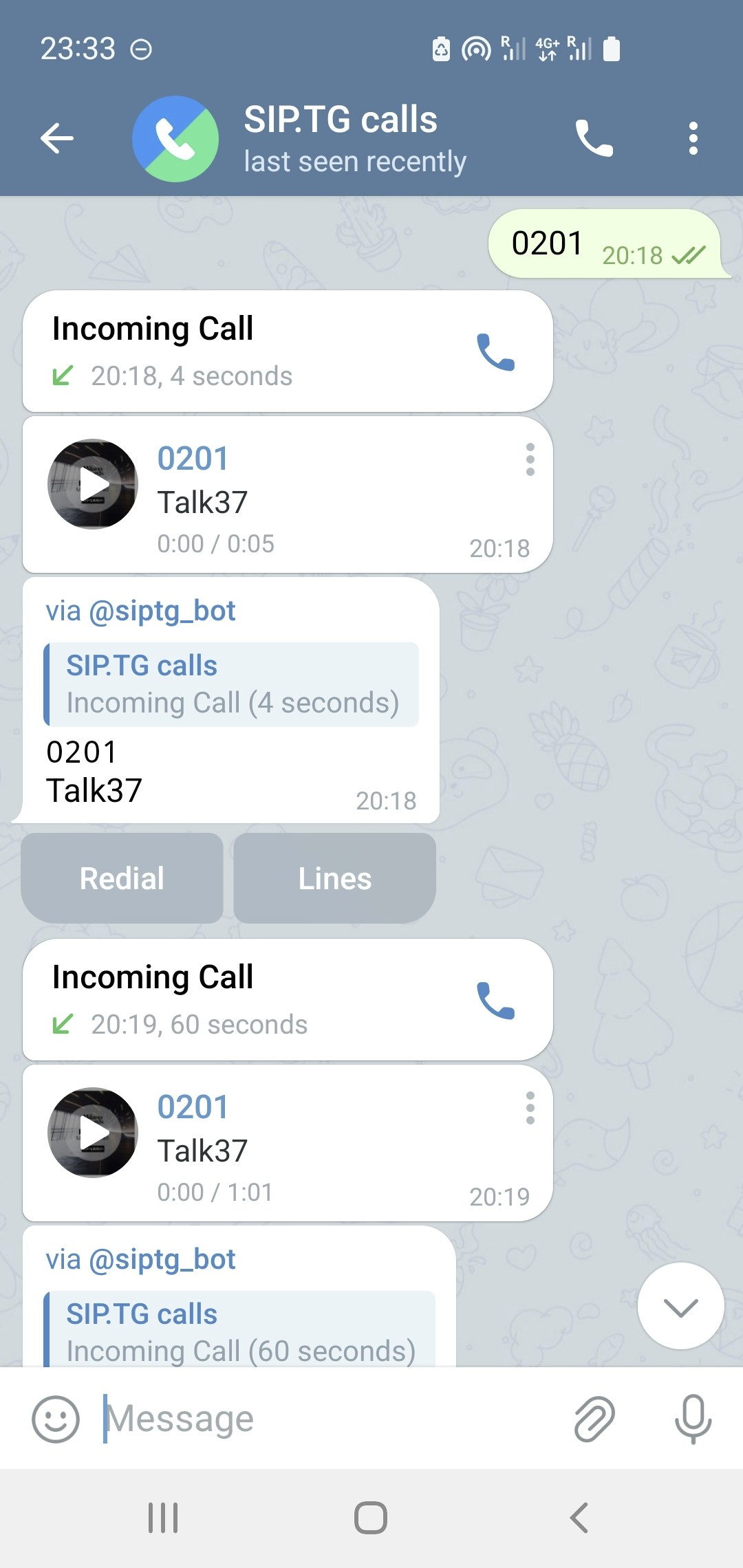
Chat interface with @siptg and call button
1
Sending the number
Send the phone number or SIP address you want to call to the @siptg chat.
2
Line selection (if you have multiple)
If you have multiple connected SIP accounts, you will be prompted to select a line for the call.
3
Waiting for connection
If using Callback mode, you’ll receive an incoming call from @siptg. Answer it — and the connection will be established.If Callback is disabled — after sending the number, press 📞 in the chat with @siptg to start the call.
Incoming Calls
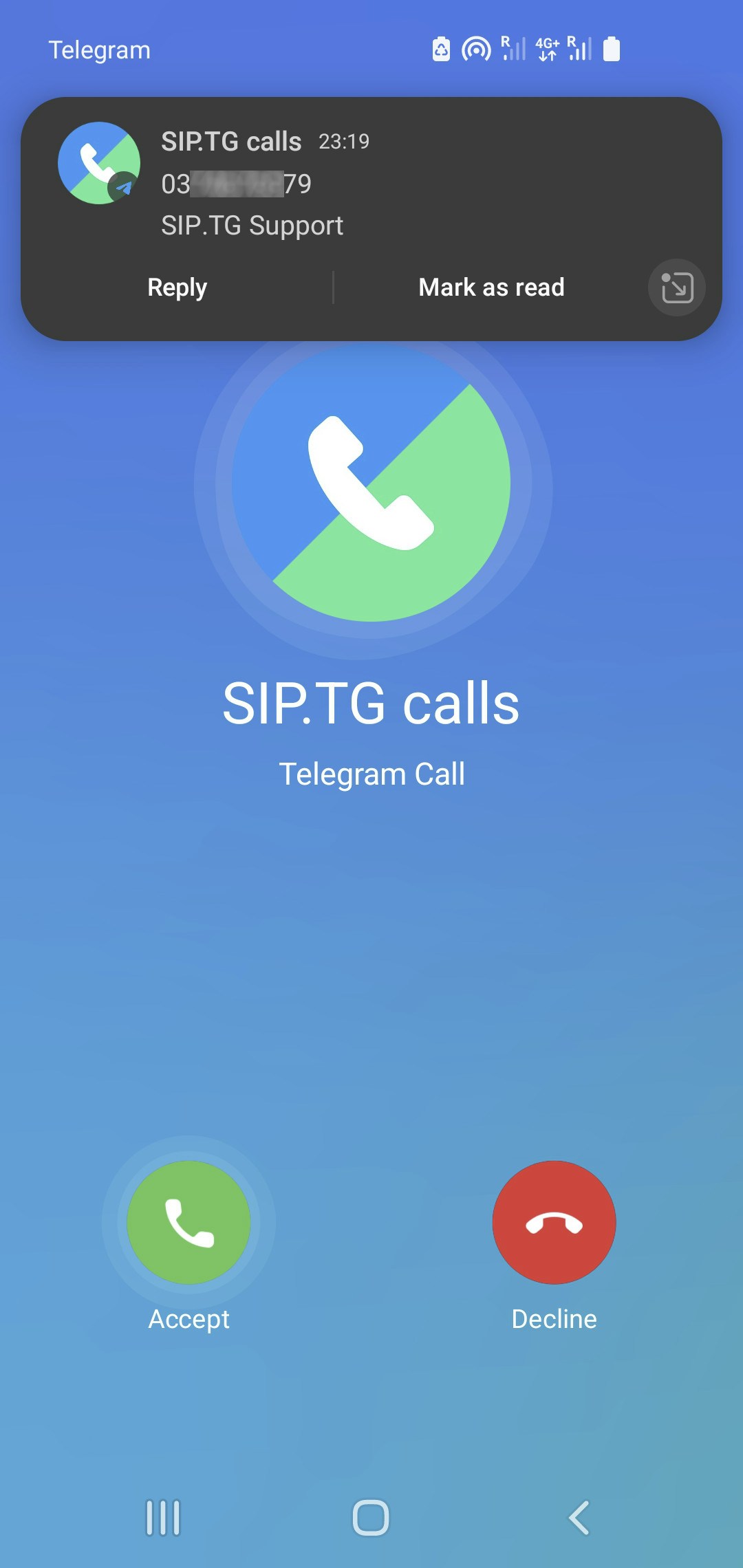
Telegram notification of an incoming call from @siptg
Call Recording
If you have paid for call recording as part of your subscription, you can enable automatic recording of all calls for each SIP account separately. This is configured when editing the SIP account in the bot. There, you can also choose where to send the recordings: to a personal chat, channel, or group. For more details, see the Softphone Settings page.Manual Recording During a Call
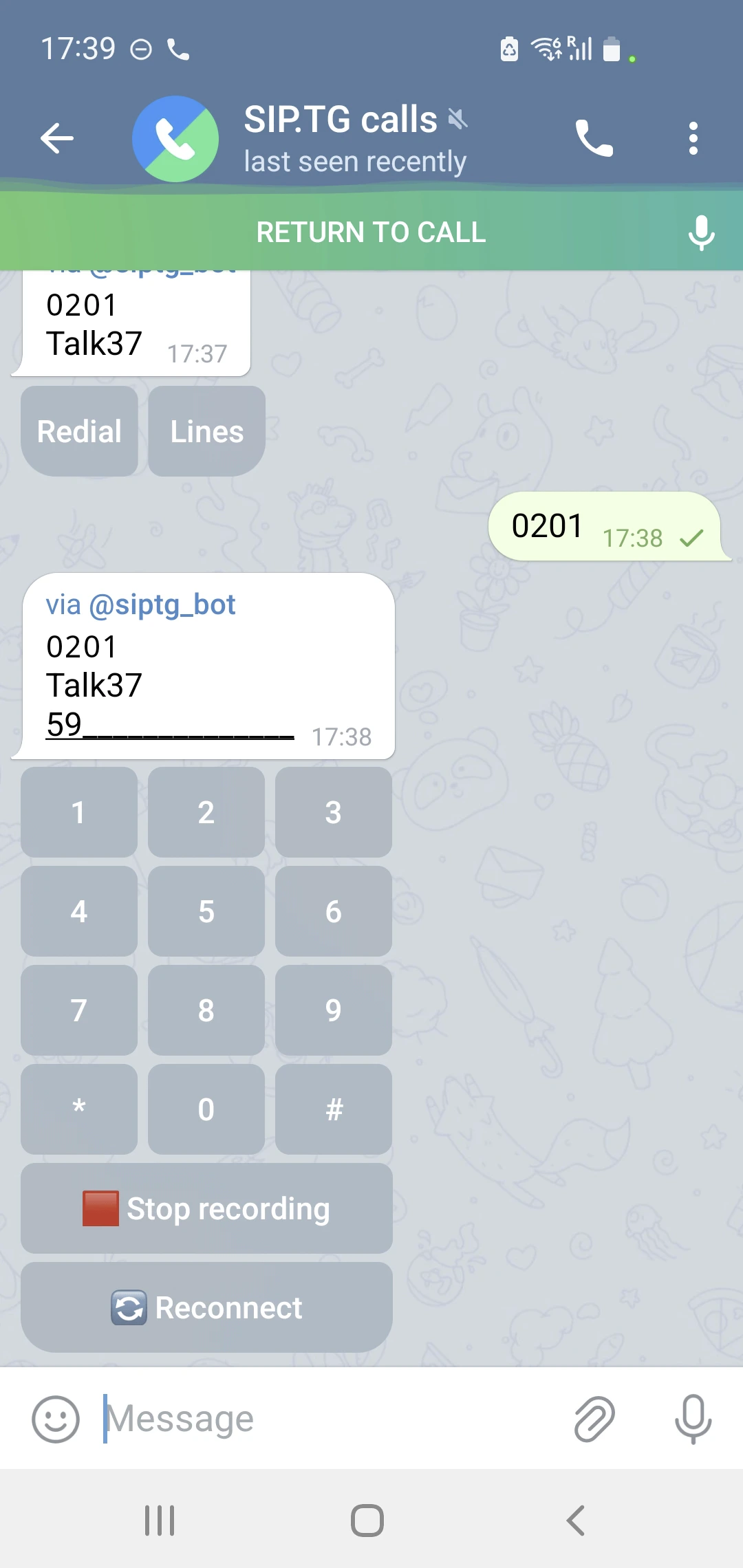
Recording button under the DTMF keypad during a call
The recording control button is located under the DTMF keypad. To see it, during a call, swipe up or left on the screen and open the chat with @siptg.
Reconnecting to call
Below the DTMF keypad, there is another button — . It lets you reconnect to the same call from your another device without interrupting the conversation (for example, you can move a call from your laptop to your phone). It works as follows:- When you press the button, your call is ended, and your interlocutor is put on hold.
- The interlocutor hears repeating reconnection tones, and you receive an incoming call (if Callback mode is enabled) or are prompted to make an outgoing call to @siptg.
- If you answer or call back within 60 seconds, the conversation is resumed. Otherwise, the call is terminated.
Connection recovering
If your connection is suddenly lost during a call (for example, your phone battery dies), the call will automatically switch to reconnection mode. Your interlocutor will hear repeating reconnection tones, and you will be able to continue the conversation from another device within 60 seconds.If a second parallel call was active during reconnection, it will be dropped. Only the active interlocutor you were talking to at the moment the call was interrupted will be put on hold.
DTMF Keypad
During a conversation, you can use the DTMF keypad to interact with voice menus (IVR) or enter extension numbers. It appears in the chat with @siptg during a call and disappears after it ends. DTMF transmission methods (RFC2833, INFO, inband) are selected in the SIP account settings. For more details, see Softphone Settings.Second Parallel Call
During an active conversation, you can accept a second incoming call or make a second outgoing call:- If another incoming call arrives during a conversation, you will hear periodic beeps.
- To make a second outgoing call without ending the current one, simply send the number for the second call as a regular message in the @siptg chat.
- — ends your current conversation and connects your interlocutors with each other;
- — puts the current conversation on hold, and connect you to the new call;
- — rejects the second incoming call.
Android Phone Book
Process of displaying caller name by Automate script
1
Installing the Automate app
Install the Automate app on your Android device.
2
Installing the SIP.TG script
Open the link to our script and install it in the Automate app.
3
Granting permissions
Accept all requested permissions, including access to calls and contacts.
4
Launch
Press the START button in the app. After this, incoming calls will display with the name from your phone book.