> ## Documentation Index
> Fetch the complete documentation index at: https://www.sip.tg/llms.txt
> Use this file to discover all available pages before exploring further.
# How to Use
export const bot = {
ACTIVATE_TARIFF_PLAN: "Activate subscription",
ADDRESS: "Address",
ADDRESS_PORT: "Address:port",
ADMIN_ASSIGN: "Assign administrator",
APPLY: "Apply",
ARBITRARY_CHECK: "Messages processing",
AUTORENEW: "Auto renewal",
AUTOREPLY: "Autoreply",
BACK: "Back",
BACK_TO_PAYMENT: "Back to payment",
BALANCE_TRANSFER: "Transfer",
BILLING: "Billing",
BTN_CHARGE_REDIRECT: "Confirm charge",
BTN_EMPTY_BOT: "Inline bot",
BTN_TARIFF_NEW: "Activate",
CALLBACK_CHECK: "Callback",
CALLBACK_SWITCH_OFF: "Switch off Callback mode",
CALLBACK_SWITCH_ON: "Switch on Callback mode",
CALLER_NAME: "Caller name",
CALLER_PHONE: "Caller phone",
CANCEL: "Cancel",
COMMENT: "Comment",
CONFIGURE_ACCOUNT_ALLOW_EVERYBODY: "Allow calls from all users",
CONFIGURE_ACCOUNT_ALLOW_P2P: "Allow P2P calls from everybody",
CONFIGURE_ACCOUNT_DISALLOW_GROUPS: "Disallow adding to groups",
CONFIGURE_ACCOUNT_OFF_OTHER_SESSIONS_CALLS: "Disable calls on other devices",
COUNTRY: "Country",
DELETE: "Delete",
DESCRIPTION: "Description",
DIAL_RULES: "Dial Rules",
DOC_BTN_PROVIDE: "Provide documentation",
DOMAIN: "Domain",
DTMF_METHODS: "DTMF Methods",
FIELD_VALUE: "Field:Value",
FORMATS: "Audio Codecs",
FW_ADD: "Add phone number",
FW_ADD_OTHER: "Other number",
FW_ADD_SELF: "Telegram number",
FW_ANTISPAM: "Anti-spam",
FW_BACK: "Back",
FW_BONUS_PROGRAM: "Referral program",
FW_CANCEL: "Cancel",
FW_DELETE: "Delete",
FW_NAME: "Name",
FW_NO: "No",
FW_PHONE_FORWARDING: "Remind number",
FW_RECORDER_CHAT: "Chat for recordings",
FW_RECORDER_CHECKBOX: "Call recording",
FW_SELECT_COUNTRY: "Choose country (region)",
FW_SHARE_PHONE: "Send phone number",
FW_TELL_FRIENDS: "Tell friends",
FW_YES: "Yes",
GATEWAY_IN_RESET: "Reset Password",
GATEWAY_IN_SHOW: "Show Account",
GATEWAY_OUT_NUMBER: "Number on PBX",
GENERATE_NEW: "Generate new",
GIVE_ACCESS: "Give the access",
GIVE_PHONE_NUMBER: "Give phone number",
HELP: "Help",
INLINE_QUERY: "Inline query",
INVOICE_BANK_IGNORE_CURRENT_RATE: "Ignore currency rate",
KEYPAD_IN: "DTMF In",
KEYPAD_OUT: "DTMF Out",
KEYS_GET: "Get Keys",
KEYS_RESET: "Reset Keys",
LEARN_ABOUT: "Learn about SIP.TG",
LINES: "Lines",
LINES_CHECK: "Lines",
LOGIN: "Login",
MANUAL: "Manual",
MODE_GATEWAY: "Gateway mode",
MODE_SOFTPHONE: "Softphone mode",
NAME: "Name",
NEW: "New",
NEW_IN: "🆕 PBX→SIP․TG",
NEW_IP: "🆕 IP⇿IP",
NEW_OUT: "🆕 SIP․TG→PBX",
NO: "No",
PARALLEL_DECLINE: "Decline",
PARALLEL_END: "End",
PARALLEL_SWITCH: "Switch",
PARALLEL_TRANSFER: "Transfer",
PASSWORD: "Password",
PAYER: "Payer",
PAYSYSTEM_BTN_VERIFY: "Specify country of residence",
PAYSYSTEM_DOCS_PROVIDE: "Provide documents",
PAYSYSTEM_METHOD: "Payment method",
PAY_TARIFF: "Pay",
PROLONG: "Renew",
PROMO_BUTTON_EMPTY: "Discount code",
RECONNECT: "🔄 Reconnect",
RECORDER_ACTIVATE: "🔴 Start recording",
RECORDER_ACTIVATE_FAILED: "⚠️ Start recording",
RECORDER_CHAT: "Chat for recordings",
RECORDER_CHECKBOX: "Call recording",
RECORDER_DEACTIVATE: "🟥 Stop recording",
RECORDER_DEACTIVATE_RECONNECTING: "⌛ Stop recording",
RECORDER_LOCKED: "🔒 Recording locked",
REDIAL: "Redial",
REDIAL_CHECK: "Redial",
REGISTRAR: "Proxy",
REPEAT: "Repeat",
SELECT_BOT: "Select bot",
SELECT_CHANNEL: "Select channel",
SELECT_CHAT: "Select chat",
SELECT_USER: "Select user",
SERVER_FROM_TEMPLATE: "Settings templates",
SESSION_BILLER_CHECK: "Use a shared subscription",
SESSION_CONFIGURE_ACCOUNT: "Configure Telegram account",
SESSION_LOGIN: "Connect",
SESSION_LOGOUT: "Disconnect",
SETTINGS: "Settings",
START_CALLING: "Go to calls",
SUPPORT: "Support",
SWITCH_OFF: "Switch off",
SWITCH_ON: "Switch on",
TAKE: "Take",
TARIFF_ACTIVATE_CHANGE_USER: "Change customer",
TARIFF_ACTIVATE_USER: "Activate for customer",
TARIFF_ACTIVATE_YOURSELF: "Activate yourself",
TAX_ADDRESS: "Address",
TAX_BUSINESS: "Business",
TAX_NAME: "Buyer",
TAX_NUMBER: "Tax number",
TERMINATE_SESSION: "Terminate the session",
TERMS_AGREE: "Agree with Terms and Conditions",
TG_STORAGE_OFFICIAL: "✅ SIP․TG Sessions Storage",
TRANSFER: "Transfer",
TRANSFER_BACK: "Transfer back",
TRUSTED_IPS: "Trusted IPs",
UNLINK: "Unlink",
USER: "User",
VERIFY_ROUTE_BAD: "👎 No, it's spam",
VERIFY_ROUTE_GOOD: "👍 Yes, all good",
VERIFY_ROUTE_RECOVER: "Recover incoming calls",
WORKER_AUTO: "Auto",
YES: "Yes"
};
By using **Softphone**, you transform Telegram into a full-fledged SIP client. After you've added and configured a SIP account via [@siptg\_bot](https://t.me/siptg_bot?start=utm_docs), you can immediately start making calls through it using Telegram.
To use Softphone, you need to activate a subscription with the ☎️ "Softphone" label — or use the **Free subscription**, which includes a limited number of calls. For more details, see [Subscriptions Overview](/en/docs/subscriptions/pricing).
## Making Calls
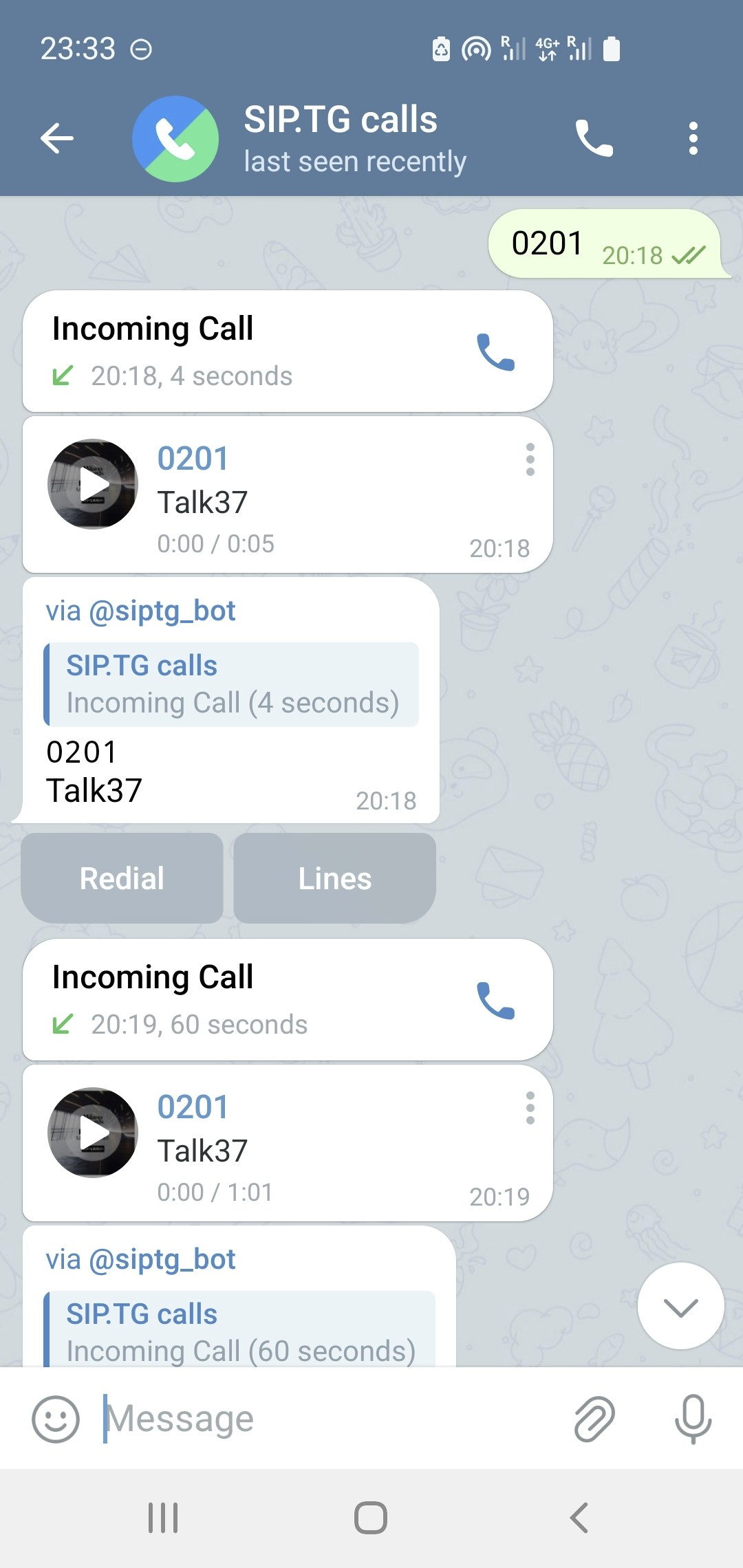 After setting up a SIP account, simply send the number you want to call to the [@siptg](https://t.me/siptg) account chat.
The number can contain not only digits but also letters, if supported by your PBX. The number is subject to customizable transformation rules that allow you to clean it of unnecessary characters, set prefixes, and more. For details, see [Outgoing Number Transformation](/en/docs/softphone/settings#dialing-rules).
If you have the **Callback** mode active, immediately after sending the number, you will receive an incoming call from the **@siptg** account. After answering it, a connection with the dialed number will begin. If Callback is disabled — you need to manually press 📞 in the chat with **@siptg**.
Send the phone number or SIP address you want to call to the **@siptg** chat.
If you have multiple connected SIP accounts, you will be prompted to select a line for the call.
If using Callback mode, you'll receive an incoming call from **@siptg**. Answer it — and the connection will be established.
If Callback is disabled — after sending the number, press 📞 in the chat with **@siptg** to start the call.
During your first call, Telegram may request permission to receive calls from the **@siptg** account. Allow calls for all or add **@siptg** to exceptions.
## Incoming Calls
After setting up a SIP account, simply send the number you want to call to the [@siptg](https://t.me/siptg) account chat.
The number can contain not only digits but also letters, if supported by your PBX. The number is subject to customizable transformation rules that allow you to clean it of unnecessary characters, set prefixes, and more. For details, see [Outgoing Number Transformation](/en/docs/softphone/settings#dialing-rules).
If you have the **Callback** mode active, immediately after sending the number, you will receive an incoming call from the **@siptg** account. After answering it, a connection with the dialed number will begin. If Callback is disabled — you need to manually press 📞 in the chat with **@siptg**.
Send the phone number or SIP address you want to call to the **@siptg** chat.
If you have multiple connected SIP accounts, you will be prompted to select a line for the call.
If using Callback mode, you'll receive an incoming call from **@siptg**. Answer it — and the connection will be established.
If Callback is disabled — after sending the number, press 📞 in the chat with **@siptg** to start the call.
During your first call, Telegram may request permission to receive calls from the **@siptg** account. Allow calls for all or add **@siptg** to exceptions.
## Incoming Calls
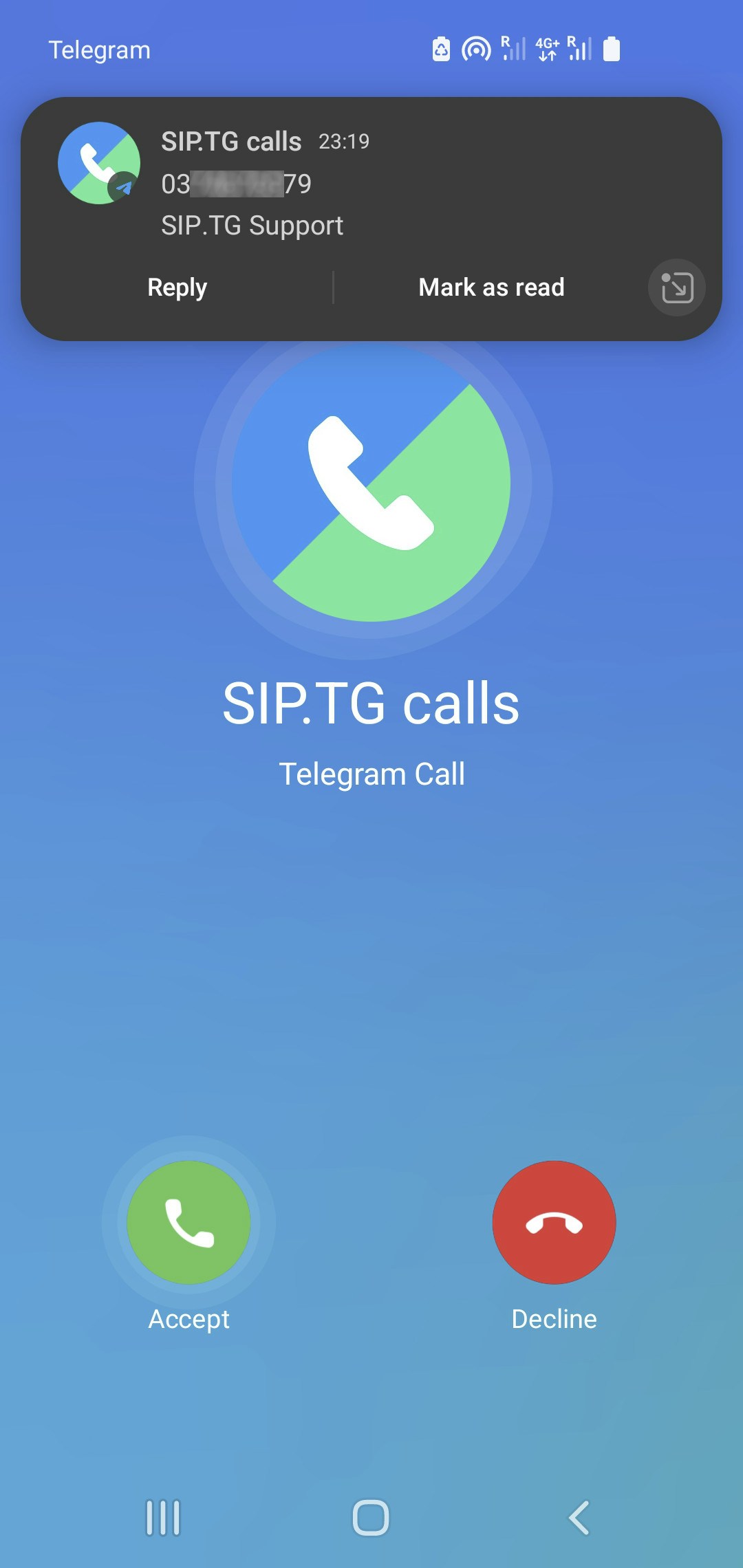 Incoming calls appear as regular Telegram calls from the **@siptg** account. You can accept the call from the notification menu or directly from Telegram.
The name and number of the caller (if transmitted by your PBX) come as a separate text message in the chat with @siptg **at the moment of the incoming call**. You can pull down the notification shade to see the information before answering.
To see additional information about the caller at the moment of an incoming call, enable Telegram notifications for the chat with **@siptg**.
## Call Recording
If you have paid for call recording as part of your subscription, you can enable automatic recording of all calls for each SIP account separately. This is configured when editing the SIP account in the bot. There, you can also choose where to send the recordings: to a personal chat, channel, or group. For more details, see the [Softphone Settings](/en/docs/softphone/settings) page.
A subscription with call recording activates the recording capability **for all accounts**, but enabling automatic recording is done **separately for each account**.
### Manual Recording During a Call
Incoming calls appear as regular Telegram calls from the **@siptg** account. You can accept the call from the notification menu or directly from Telegram.
The name and number of the caller (if transmitted by your PBX) come as a separate text message in the chat with @siptg **at the moment of the incoming call**. You can pull down the notification shade to see the information before answering.
To see additional information about the caller at the moment of an incoming call, enable Telegram notifications for the chat with **@siptg**.
## Call Recording
If you have paid for call recording as part of your subscription, you can enable automatic recording of all calls for each SIP account separately. This is configured when editing the SIP account in the bot. There, you can also choose where to send the recordings: to a personal chat, channel, or group. For more details, see the [Softphone Settings](/en/docs/softphone/settings) page.
A subscription with call recording activates the recording capability **for all accounts**, but enabling automatic recording is done **separately for each account**.
### Manual Recording During a Call
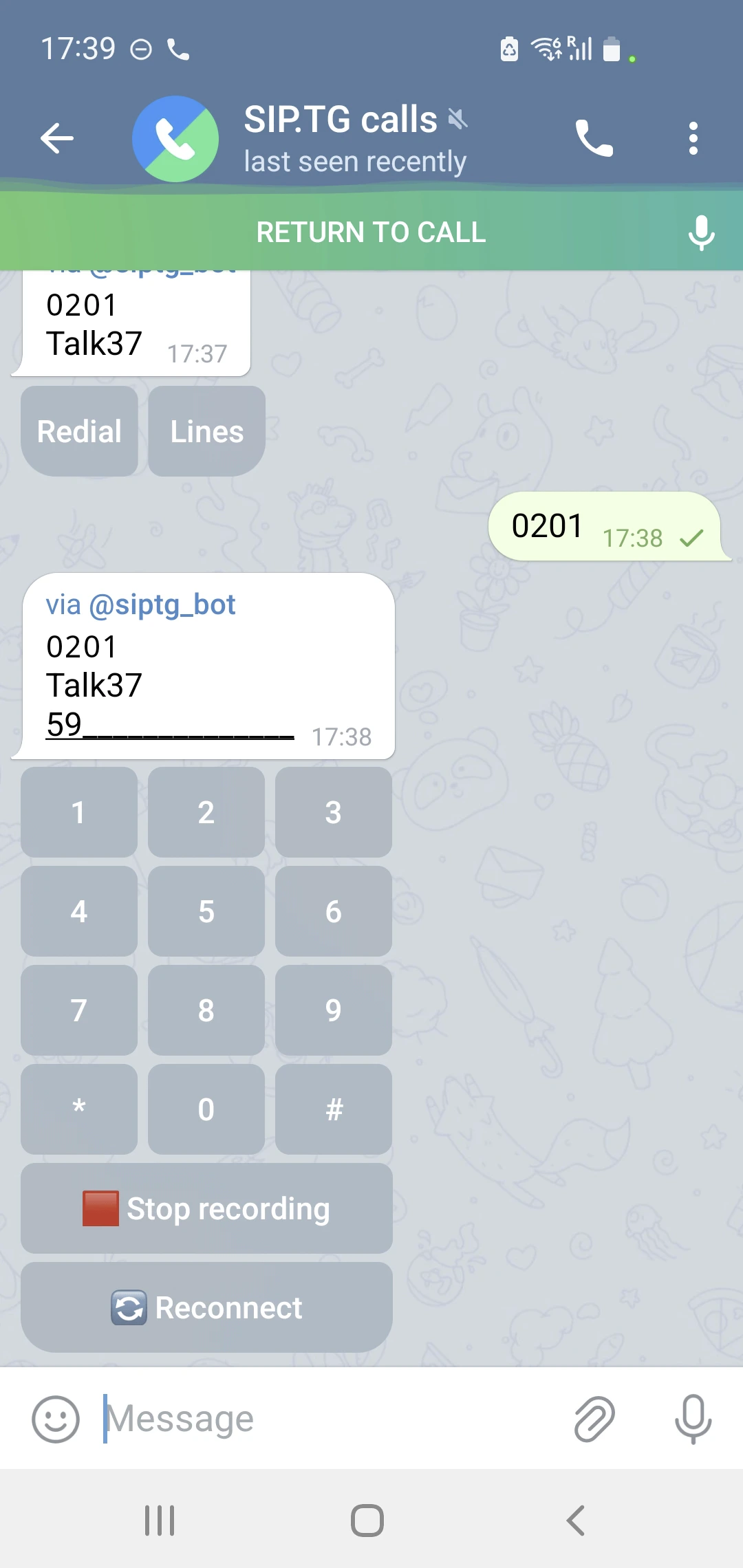 If your subscription does not include recording, you can manually record **a call fragment up to 15 seconds long** — the recording button is available during the conversation.
If recording is paid for, but **automatic recording is disabled**, you can manually start and stop recording at any time — **without duration limitations**. The recorded files are sent to the chat immediately after the recording is completed.
The recording control button is located under the DTMF keypad. To see it, during a call, swipe up or left on the screen and open the chat with **@siptg**.
If you are a **SIP account user**, and the account owner has enabled automatic recording and specified a separate chat for saving, you will see that the conversation is being recorded, but **you cannot stop the recording**.
## Reconnecting to call
Below the DTMF keypad, there is another button — **{bot.RECONNECT}**. It lets you reconnect to the same call from your another device without interrupting the conversation (for example, you can move a call from your laptop to your phone).
It works as follows:
1. When you press the button, your call is ended, and your interlocutor is put on hold.
2. The interlocutor hears repeating reconnection tones, and you receive an incoming call (if Callback mode is enabled) or are prompted to make an outgoing call to **@siptg**.
3. If you answer or call back within 60 seconds, the conversation is resumed. Otherwise, the call is terminated.
### Connection recovering
If your connection is suddenly lost during a call (for example, your phone battery dies), the call will automatically switch to reconnection mode. Your interlocutor will hear repeating reconnection tones, and you will be able to continue the conversation from another device within 60 seconds.
If a [second parallel call](#second-call) was active during reconnection, it will be dropped. Only the active interlocutor you were talking to at the moment the call was interrupted will be put on hold.
## DTMF Keypad
During a conversation, you can use the DTMF keypad to interact with voice menus (IVR) or enter extension numbers. It appears in the chat with **@siptg** during a call and disappears after it ends.
DTMF transmission methods (RFC2833, INFO, inband) are selected in the SIP account settings. For more details, see [Softphone Settings](/en/docs/softphone/settings).
## Second Parallel Call
During an active conversation, you can accept a second incoming call or make a second outgoing call:
* If another **incoming** call arrives during a conversation, you will hear periodic beeps.
* To make a second **outgoing** call without ending the current one, simply send the number for the second call as a regular message in the **@siptg** chat.
In both cases, a new message with action buttons will appear in the **@siptg** chat:
* **{bot.PARALLEL_TRANSFER}** — ends your current conversation and connects your interlocutors with each other;
* **{bot.PARALLEL_SWITCH}** — puts the current conversation on hold, and connect you to the new call;
* **{bot.PARALLEL_DECLINE}** — rejects the second incoming call.
When you have two active conversations, you can continue to switch between interlocutors several times using the **{bot.PARALLEL_SWITCH}** button, or press the **{bot.PARALLEL_TRANSFER}** button to connect the interlocutors with each other and disconnect yourself.
Another button will also appear, **{bot.PARALLEL_END}** — it terminates the current conversation and returns you to the second interlocutor, who was on hold during this time.
## Android Phone Book
To display the caller's name from your local Android address book, we have developed an integration based on Automate:
Install the [Automate app](https://play.google.com/store/apps/details?id=com.llamalab.automate) on your Android device.
Open the link to [our script](https://llamalab.com/automate/community/flows/45201) and install it in the Automate app.
Accept all requested permissions, including access to calls and contacts.
Press the START button in the app. After this, incoming calls will display with the name from your phone book.
Share your experience in the public group [@siptg\_public](https://t.me/siptg_public) and leave reviews in the [Automate catalog](https://llamalab.com/automate/community/flows/45201)!
If your subscription does not include recording, you can manually record **a call fragment up to 15 seconds long** — the recording button is available during the conversation.
If recording is paid for, but **automatic recording is disabled**, you can manually start and stop recording at any time — **without duration limitations**. The recorded files are sent to the chat immediately after the recording is completed.
The recording control button is located under the DTMF keypad. To see it, during a call, swipe up or left on the screen and open the chat with **@siptg**.
If you are a **SIP account user**, and the account owner has enabled automatic recording and specified a separate chat for saving, you will see that the conversation is being recorded, but **you cannot stop the recording**.
## Reconnecting to call
Below the DTMF keypad, there is another button — **{bot.RECONNECT}**. It lets you reconnect to the same call from your another device without interrupting the conversation (for example, you can move a call from your laptop to your phone).
It works as follows:
1. When you press the button, your call is ended, and your interlocutor is put on hold.
2. The interlocutor hears repeating reconnection tones, and you receive an incoming call (if Callback mode is enabled) or are prompted to make an outgoing call to **@siptg**.
3. If you answer or call back within 60 seconds, the conversation is resumed. Otherwise, the call is terminated.
### Connection recovering
If your connection is suddenly lost during a call (for example, your phone battery dies), the call will automatically switch to reconnection mode. Your interlocutor will hear repeating reconnection tones, and you will be able to continue the conversation from another device within 60 seconds.
If a [second parallel call](#second-call) was active during reconnection, it will be dropped. Only the active interlocutor you were talking to at the moment the call was interrupted will be put on hold.
## DTMF Keypad
During a conversation, you can use the DTMF keypad to interact with voice menus (IVR) or enter extension numbers. It appears in the chat with **@siptg** during a call and disappears after it ends.
DTMF transmission methods (RFC2833, INFO, inband) are selected in the SIP account settings. For more details, see [Softphone Settings](/en/docs/softphone/settings).
## Second Parallel Call
During an active conversation, you can accept a second incoming call or make a second outgoing call:
* If another **incoming** call arrives during a conversation, you will hear periodic beeps.
* To make a second **outgoing** call without ending the current one, simply send the number for the second call as a regular message in the **@siptg** chat.
In both cases, a new message with action buttons will appear in the **@siptg** chat:
* **{bot.PARALLEL_TRANSFER}** — ends your current conversation and connects your interlocutors with each other;
* **{bot.PARALLEL_SWITCH}** — puts the current conversation on hold, and connect you to the new call;
* **{bot.PARALLEL_DECLINE}** — rejects the second incoming call.
When you have two active conversations, you can continue to switch between interlocutors several times using the **{bot.PARALLEL_SWITCH}** button, or press the **{bot.PARALLEL_TRANSFER}** button to connect the interlocutors with each other and disconnect yourself.
Another button will also appear, **{bot.PARALLEL_END}** — it terminates the current conversation and returns you to the second interlocutor, who was on hold during this time.
## Android Phone Book
To display the caller's name from your local Android address book, we have developed an integration based on Automate:
Install the [Automate app](https://play.google.com/store/apps/details?id=com.llamalab.automate) on your Android device.
Open the link to [our script](https://llamalab.com/automate/community/flows/45201) and install it in the Automate app.
Accept all requested permissions, including access to calls and contacts.
Press the START button in the app. After this, incoming calls will display with the name from your phone book.
Share your experience in the public group [@siptg\_public](https://t.me/siptg_public) and leave reviews in the [Automate catalog](https://llamalab.com/automate/community/flows/45201)!