> ## Documentation Index
> Fetch the complete documentation index at: https://www.sip.tg/llms.txt
> Use this file to discover all available pages before exploring further.
# Interaction with PBX
export const bot = {
ACTIVATE_TARIFF_PLAN: "Activate subscription",
ADDRESS: "Address",
ADDRESS_PORT: "Address:port",
ADMIN_ASSIGN: "Assign administrator",
APPLY: "Apply",
ARBITRARY_CHECK: "Messages processing",
AUTORENEW: "Auto renewal",
AUTOREPLY: "Autoreply",
BACK: "Back",
BACK_TO_PAYMENT: "Back to payment",
BALANCE_TRANSFER: "Transfer",
BILLING: "Billing",
BTN_CHARGE_REDIRECT: "Confirm charge",
BTN_EMPTY_BOT: "Inline bot",
BTN_TARIFF_NEW: "Activate",
CALLBACK_CHECK: "Callback",
CALLBACK_SWITCH_OFF: "Switch off Callback mode",
CALLBACK_SWITCH_ON: "Switch on Callback mode",
CALLER_NAME: "Caller name",
CALLER_PHONE: "Caller phone",
CANCEL: "Cancel",
COMMENT: "Comment",
CONFIGURE_ACCOUNT_ALLOW_EVERYBODY: "Allow calls from all users",
CONFIGURE_ACCOUNT_ALLOW_P2P: "Allow P2P calls from everybody",
CONFIGURE_ACCOUNT_DISALLOW_GROUPS: "Disallow adding to groups",
CONFIGURE_ACCOUNT_OFF_OTHER_SESSIONS_CALLS: "Disable calls on other devices",
COUNTRY: "Country",
DELETE: "Delete",
DESCRIPTION: "Description",
DIAL_RULES: "Dial Rules",
DOC_BTN_PROVIDE: "Provide documentation",
DOMAIN: "Domain",
DTMF_METHODS: "DTMF Methods",
FIELD_VALUE: "Field:Value",
FORMATS: "Audio Codecs",
FW_ADD: "Add phone number",
FW_ADD_OTHER: "Other number",
FW_ADD_SELF: "Telegram number",
FW_ANTISPAM: "Anti-spam",
FW_BACK: "Back",
FW_BONUS_PROGRAM: "Referral program",
FW_CANCEL: "Cancel",
FW_DELETE: "Delete",
FW_NAME: "Name",
FW_NO: "No",
FW_PHONE_FORWARDING: "Remind number",
FW_RECORDER_CHAT: "Chat for recordings",
FW_RECORDER_CHECKBOX: "Call recording",
FW_SELECT_COUNTRY: "Choose country (region)",
FW_SHARE_PHONE: "Send phone number",
FW_TELL_FRIENDS: "Tell friends",
FW_YES: "Yes",
GATEWAY_IN_RESET: "Reset Password",
GATEWAY_IN_SHOW: "Show Account",
GATEWAY_OUT_NUMBER: "Number on PBX",
GENERATE_NEW: "Generate new",
GIVE_ACCESS: "Give the access",
GIVE_PHONE_NUMBER: "Give phone number",
HELP: "Help",
INLINE_QUERY: "Inline query",
INVOICE_BANK_IGNORE_CURRENT_RATE: "Ignore currency rate",
KEYPAD_IN: "DTMF In",
KEYPAD_OUT: "DTMF Out",
KEYS_GET: "Get Keys",
KEYS_RESET: "Reset Keys",
LEARN_ABOUT: "Learn about SIP.TG",
LINES: "Lines",
LINES_CHECK: "Lines",
LOGIN: "Login",
MANUAL: "Manual",
MODE_GATEWAY: "Gateway mode",
MODE_SOFTPHONE: "Softphone mode",
NAME: "Name",
NEW: "New",
NEW_IN: "🆕 PBX→SIP․TG",
NEW_IP: "🆕 IP⇿IP",
NEW_OUT: "🆕 SIP․TG→PBX",
NO: "No",
PARALLEL_DECLINE: "Decline",
PARALLEL_END: "End",
PARALLEL_SWITCH: "Switch",
PARALLEL_TRANSFER: "Transfer",
PASSWORD: "Password",
PAYER: "Payer",
PAYSYSTEM_BTN_VERIFY: "Specify country of residence",
PAYSYSTEM_DOCS_PROVIDE: "Provide documents",
PAYSYSTEM_METHOD: "Payment method",
PAY_TARIFF: "Pay",
PROLONG: "Renew",
PROMO_BUTTON_EMPTY: "Discount code",
RECONNECT: "🔄 Reconnect",
RECORDER_ACTIVATE: "🔴 Start recording",
RECORDER_ACTIVATE_FAILED: "⚠️ Start recording",
RECORDER_CHAT: "Chat for recordings",
RECORDER_CHECKBOX: "Call recording",
RECORDER_DEACTIVATE: "🟥 Stop recording",
RECORDER_DEACTIVATE_RECONNECTING: "⌛ Stop recording",
RECORDER_LOCKED: "🔒 Recording locked",
REDIAL: "Redial",
REDIAL_CHECK: "Redial",
REGISTRAR: "Proxy",
REPEAT: "Repeat",
SELECT_BOT: "Select bot",
SELECT_CHANNEL: "Select channel",
SELECT_CHAT: "Select chat",
SELECT_USER: "Select user",
SERVER_FROM_TEMPLATE: "Settings templates",
SESSION_BILLER_CHECK: "Use a shared subscription",
SESSION_CONFIGURE_ACCOUNT: "Configure Telegram account",
SESSION_LOGIN: "Connect",
SESSION_LOGOUT: "Disconnect",
SETTINGS: "Settings",
START_CALLING: "Go to calls",
SUPPORT: "Support",
SWITCH_OFF: "Switch off",
SWITCH_ON: "Switch on",
TAKE: "Take",
TARIFF_ACTIVATE_CHANGE_USER: "Change customer",
TARIFF_ACTIVATE_USER: "Activate for customer",
TARIFF_ACTIVATE_YOURSELF: "Activate yourself",
TAX_ADDRESS: "Address",
TAX_BUSINESS: "Business",
TAX_NAME: "Buyer",
TAX_NUMBER: "Tax number",
TERMINATE_SESSION: "Terminate the session",
TERMS_AGREE: "Agree with Terms and Conditions",
TG_STORAGE_OFFICIAL: "✅ SIP․TG Sessions Storage",
TRANSFER: "Transfer",
TRANSFER_BACK: "Transfer back",
TRUSTED_IPS: "Trusted IPs",
UNLINK: "Unlink",
USER: "User",
VERIFY_ROUTE_BAD: "👎 No, it's spam",
VERIFY_ROUTE_GOOD: "👍 Yes, all good",
VERIFY_ROUTE_RECOVER: "Recover incoming calls",
WORKER_AUTO: "Auto",
YES: "Yes"
};
Integration with PBX systems occurs through SIP connections, which are jointly configured both on the PBX side and on the SIP.TG side.
To create a SIP connection on the SIP.TG side:
1. Launch the [@siptg\_bot](https://t.me/siptg_bot?start=utm_docs) and go to the `/gateway` section.
2. Select the Telegram session you want to connect to the PBX, or create a new one using the **{bot.SESSION_LOGIN}** button (for more details, see [Step-by-step session connection](/en/docs/gateway/telegram#steps)).
3. Click one of the buttons to create a new SIP connection, corresponding to the connection type: **{bot.NEW_IN}**, **{bot.NEW_OUT}** or **{bot.NEW_IP}**.
## Configuring SIP Connection to PBX
Most settings are displayed directly on the buttons as current values. To change these settings, simply click the corresponding button and enter a new value when prompted by the bot.
However, some buttons work differently:
* **Worker**: when clicked, a list of available Worker servers appears. Select the desired server from the list to see its detailed description and assign it.
* **Checkmark buttons**, such as "{bot.KEYPAD_IN}", "{bot.KEYPAD_OUT}", "{bot.REDIAL_CHECK}", "{bot.LINES_CHECK}", "{bot.ARBITRARY_CHECK}", "{bot.CALLBACK_CHECK}" and "{bot.SESSION_BILLER_CHECK}", work as toggles. One click activates or deactivates the option.
* **Connection protocol (UDP/TCP/TLS)**: each click switches to the next available protocol.
* **{bot.GATEWAY_IN_SHOW}** and **{bot.GATEWAY_IN_RESET}**: display connection parameters to SIP.TG that need to be specified on the PBX side.
Allows you to select the server that will connect to the PBX or telephony provider.
There are 3 types of servers:
| Server type | Description | Symbol |
| ----------------------------- | ------------------------------------------------------ | ------ |
| Public SIP.TG servers | Main servers supported by SIP.TG | ✅ |
| Public servers of other users | Publicly available servers hosted by other users | 🌐 |
| Private servers | Your own servers, available only for your SIP accounts | 🔑 |
On a free subscription, only some of the public SIP.TG servers are available.
The choice of codecs affects the quality and compatibility of voice communication. Opus, alaw, mulaw, GSM and other codecs are supported.
DTMF is necessary for interacting with voice menus. Available methods are RFC2833 (recommended), INFO, and inband.
Allow you to set the number dialing format for compatibility with the PBX. More details in the [Outgoing dialing rules](/en/docs/softphone/settings#dialing-rules) section.
Priority allows you to set the order of calling SIP accounts when making a Telegram → SIP call.
The following rules apply:
1. Accounts with the same priority are called simultaneously.
2. The lower the priority, the earlier SIP accounts are called.
3. Transition to the next priority occurs after unsuccessful dialing to all SIP accounts of the previous priority.
Rules for forming the caller ID and displayed caller name when making a call, which applies to both directions.
For more details, see [Types of caller identifiers](#callerid).
Below are specific settings for each type of SIP connection.
### PBX → SIP.TG
In this mode, your PBX registers on SIP.TG as a SIP client. You receive a SIP login and password from the bot and specify them in your PBX.
This is the simplest connection method and is suitable for most systems (Asterisk, 3CX, FreePBX, etc.).
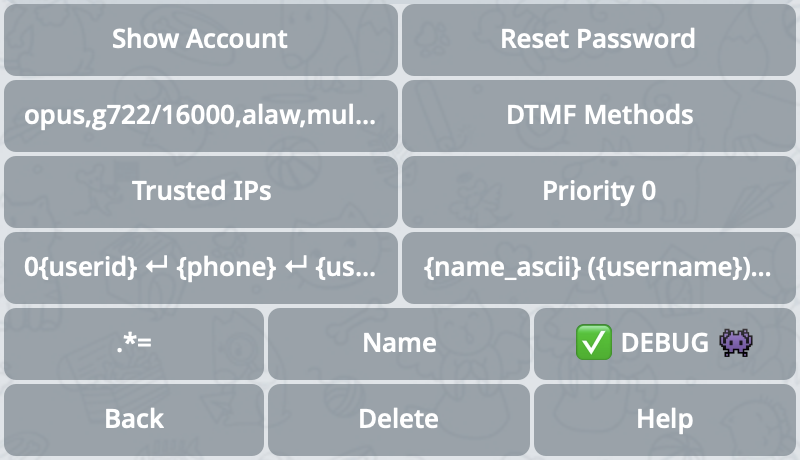 Show the login, password, and connection address of the current SIP line, which needs to be registered on your PBX side.
**{bot.GATEWAY_IN_RESET}** generates a new SIP password for this line in advance. After resetting, it will need to be updated on the PBX side.
A list of IP addresses and subnets from which connection to this account is allowed.
### SIP.TG → PBX
Here, the SIP.TG Worker server registers on your PBX. In the bot, you set the parameters of your PBX: login, password, and address.
Don't forget to add SIP.TG IP addresses to the whitelist on your PBX. Current list: [files.sip.tg/fw.txt](https://files.sip.tg/fw.txt).
Show the login, password, and connection address of the current SIP line, which needs to be registered on your PBX side.
**{bot.GATEWAY_IN_RESET}** generates a new SIP password for this line in advance. After resetting, it will need to be updated on the PBX side.
A list of IP addresses and subnets from which connection to this account is allowed.
### SIP.TG → PBX
Here, the SIP.TG Worker server registers on your PBX. In the bot, you set the parameters of your PBX: login, password, and address.
Don't forget to add SIP.TG IP addresses to the whitelist on your PBX. Current list: [files.sip.tg/fw.txt](https://files.sip.tg/fw.txt).
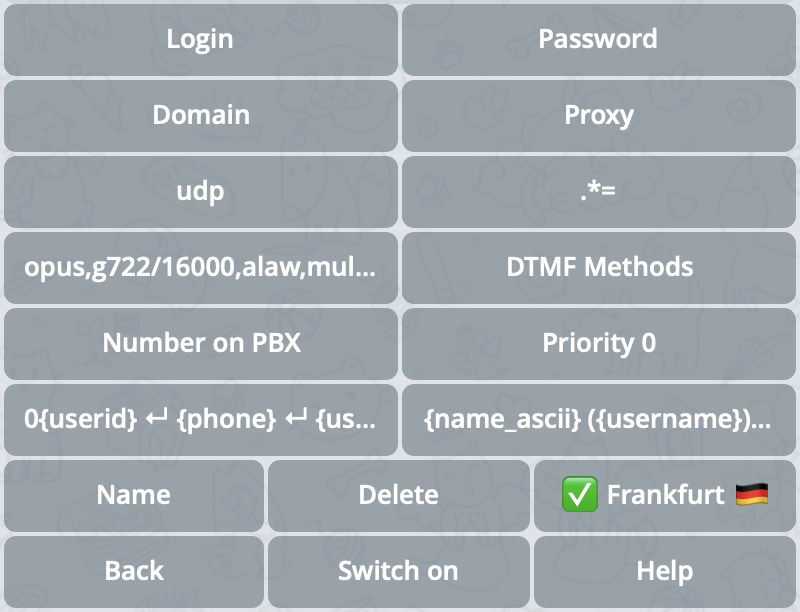 Basic connection parameters that need to be filled in to make connection to your PBX possible.
**{bot.REGISTRAR}** should only be filled in if it differs from **{bot.DOMAIN}**.
When a user clicks the call button 📞 in the Telegram app without sending any messages — this number will be used as the default number that will be sent to the PBX.
### IP ⇿ IP
Both sides know each other's IP address. Used in cases where registration is impossible or unnecessary (for example, static routing).
Suitable for advanced users. Requires route configuration on the PBX side.
Basic connection parameters that need to be filled in to make connection to your PBX possible.
**{bot.REGISTRAR}** should only be filled in if it differs from **{bot.DOMAIN}**.
When a user clicks the call button 📞 in the Telegram app without sending any messages — this number will be used as the default number that will be sent to the PBX.
### IP ⇿ IP
Both sides know each other's IP address. Used in cases where registration is impossible or unnecessary (for example, static routing).
Suitable for advanced users. Requires route configuration on the PBX side.
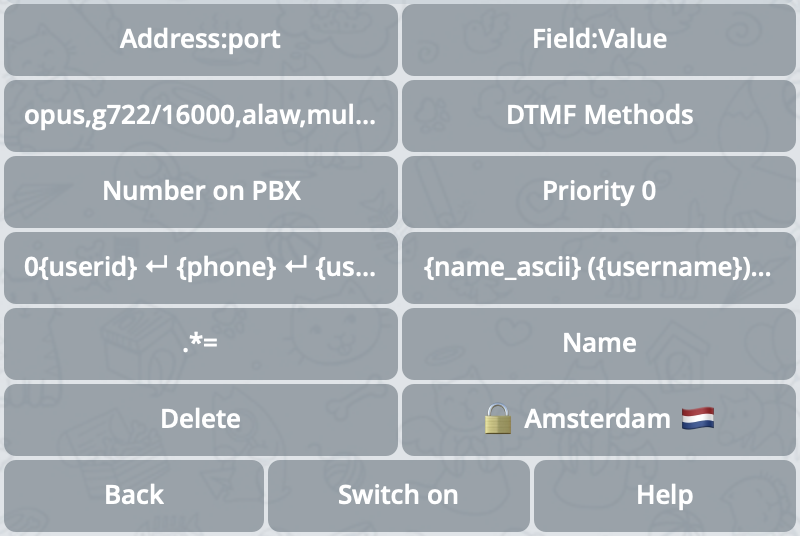 IP address and port of the opposite side (your PBX).
For the connection to be established, on the PBX side, you also need to create a connection with a specific IP address of the SIP.TG server. For this, the IP address of the Worker server assigned to the SIP connection is used.
The current IP address of the Worker server being used will be displayed in the message when you request a change to the current parameter.
If you want to use multiple SIP connections between the same IP addresses, this field allows you to set an additional SIP header for correct connection identification.
The parameter is set as a pair `{SIP field name}:{SIP field value}`, separated by a colon `:`.
When a user clicks the call button 📞 in the Telegram app without sending any messages — this number will be used as the default number that will be sent to the PBX.
## Types of caller identifiers
Each Telegram user can have up to three types of identifiers:
* **Phone number**, on which the account is registered. It is always present, but by default is hidden by privacy settings for other users. With significant limitations, it's possible to establish contact with a user by phone number.
* **Username** — this is a unique alphabetic username. By default, it doesn't exist, many users set it up, but strictly speaking, it may be absent. Conversely, a user may have several collectible Usernames. You can establish contact with a user by Username, and the restrictions are much milder than for Phone number, but cloud PBXs often do not provide for the use of non-numeric caller identifiers.
* **User ID** — internal numeric identifier. Always present, never changes, but it's impossible to establish contact with a user only by User ID — it can be used only after contact has been established by one of the other methods.
| Identifier type | Format | Contact possibility | Mandatory | Changeable | PBX support |
| --------------- | ---------- | ------------------- | --------- | ---------- | ----------- |
| Phone number | numeric | limited | yes | yes | yes |
| Username | alphabetic | yes | no | yes | limited |
| User ID | numeric | no | yes | no | yes |
The table shows that each identifier has serious limitations that prevent it from being used in all scenarios. SIP.TG supports all types of identifiers and their combinations, and also allows you to set the priority of their use according to your needs.
### Telegram → PBX
For each SIP connection, you can set rules for forming the Caller ID, which will be transmitted in the `From` field in the `INVITE` message for Telegram → PBX calls.
Caller ID formation rules consist of several lines, with one rule per line. Each rule is a template string, in which `{phone}`, `{username}`, and `{userid}` are allowed as template parameters. When forming the final Caller ID, the first rule is used, all template parameters of which contain values about the calling Telegram user.
```
{phone}
{username}
0userid
```
Such a Caller ID in different situations can take all three types of identifiers, depending on which ones the user has:
* If the Phone number is not hidden — it will be used.
* Otherwise, if Username is set — the system will choose it.
* And only in the most exceptional case will User ID with prefix `0` be used — this tag allows resolving ambiguity in the interpretation of the identifier type.
```
{phone}
{username}
```
Here, the behavior is similar to Example 1, with the only difference that if the user has neither a Phone number nor a Username, such a call will be prohibited and will not reach the PBX.
```
{phone}
{username}
anonymous
```
And this example differs from the first two in that if the user does not have a Phone number and Username, the call will still reach the PBX, but with the number `anonymous`.
In addition to Caller ID, the From field can also contain the caller's name (Caller Name), the formation of which can also be controlled using similar rules, but in addition to the parameters listed above, there are two more:
* `{name}` — display name in UTF-8 (may cause problems on the PBX side due to emojis);
* `{name_ascii}` — display name converted to ASCII (safe option).
```
+{phone} ({name_ascii})
@{username} ({name_ascii})
{name_ascii}
```
Depending on whether the user has a Phone number and Username, one of the following will be used:
* either the Phone number with prefix `+`, followed by the display name written in parentheses,
* or the Username with prefix `@`, followed by the display name written in parentheses,
* or in the most extreme case — just the display name without extraneous characters.
### PBX → Telegram
When receiving an `INVITE` request from the PBX side, the called identifier will be interpreted in full accordance with the same Caller ID parameter described above. However, the algorithm for determining the identifier type and cutting off prefixes and extraneous characters in it does not look so obvious.
As in the case of Telegram → PBX calls, rules are checked sequentially and the selection stops at the first one that satisfies the given criteria after transformations:
1. All template parameters in the rule are replaced with their corresponding regular expressions:
* `{phone}` → `+?[1-9]\d*`: a number that cannot start with `0` and optionally can start with the `+` symbol;
* `{username}` → `@?[a-zA-Z]\w*`: an alphanumeric string that can only start with a letter and optionally with a prefix `@`;
* `{userid}` → `[1-9]\d*`: a number that cannot start with `0` and cannot have prefixes.
2. As a result of item 1, a complex regular expression is obtained, against which the received identifier from the INVITE URI is checked.
3. As a result of satisfying the regular expression, although this is only theoretical, several types of identifiers may be recognized in the identifier at once. In this case, the first value will be selected in the specified order: `{userid}`, `{username}`, `{phone}`.
This ensures bidirectionality of Caller ID formation rules and consistency of identifier formats for both call directions.
## CRM Integration
CRM integration is usually implemented not directly with SIP.TG, but through a PBX to which SIP.TG connects as a standard SIP trunk. The CRM itself "sees" calls and contacts thanks to the capabilities of the PBX. Separate modules or plugins specifically for SIP.TG in CRM, as a rule, do not need to be installed.
Most often, the interaction is arranged as follows:
1. A Telegram call comes to the SIP.TG Gateway (Telegram account).
2. The SIP.TG Gateway converts the call to SIP and passes it to the PBX (via SIP trunk).
3. The PBX, having the necessary module or plugin for CRM integration, recognizes the incoming call, displays the client card, logs the call, or performs other actions.
4. At the end of the conversation, data about the call (for example, duration, result) is also saved in the CRM.
Almost any modern PBX can use SIP headers (CallerID, From, etc.) during an incoming or outgoing call to "pass through" data to the CRM module. When calling from Telegram through the SIP.TG Gateway to a SIP trunk, the caller's identifier is transmitted (most often displayed as Telegram ID or username), and the logic in the PBX maps this identifier to CRM records.
If your PBX can manage CallerID for outgoing calls (for example, "substitutes" the desired number), then the CRM can automatically record both the real phone number and Telegram contacts in the card. But there are many details for each CRM and PBX; in general, this is not directly regulated by SIP.TG.
If a CRM "knows how" to initiate a call (for example, to click on a number and call), it usually does this through the PBX, sends a Call API or AMI command there (Asterisk, 3CX, etc.). Then the PBX translates the request to the SIP.TG SIP trunk, and the Gateway calls Telegram. All this is again standard interaction "CRM → PBX → SIP trunk", where SIP.TG simply performs the role of a telecom operator for Telegram.
1. In the PBX, create an account (SIP trunk) with the credentials provided when setting up `/gateway` in [@siptg\_bot](https://t.me/siptg_bot?start=utm_docs).
2. In the CRM, activate a ready-made plugin or module (for Asterisk, 3CX, FreePBX, Yate, etc.) or configure external requests to the PBX through its API.
3. Check that the CRM receives events about calls (card pops up, logs are written) and, if necessary, connect deeper logic (call distribution, linking conversation recordings, automation).
4. For outgoing calls from CRM — check that the PBX can form a call via the "SIP.TG" SIP trunk (usually a route or dialing rule for such a line is selected).
### When additional configuration is needed
If your CRM forms or expects some specific headers (for example, X-CRM-ID), such situations are resolved by means of your PBX (AGI scripts in Asterisk, custom settings in 3CX, etc.). On the SIP.TG side, there is no way to directly influence arbitrary SIP headers.
In some cases, the CRM needs to see the original caller number in full (for example, to "link" to a specific client). If the call is from Telegram, then the number can be anything (or absent altogether), and here it depends on the logic of your PBX how to substitute CallerID. Sometimes an additional database of correspondence "Telegram ID → client phone" is added.
Call recording can be enabled both in the PBX itself and in the "Call recording" mode on the SIP.TG side (in the Softphone). If you want to store recordings specifically in the CRM, check if your PBX can transfer recording files there. From the point of view of SIP.TG, this is a "transparent" transmission of sound via SIP, and there are no additional settings for recording.
### Additional tips
* **Unified approach**: all settings related to CRM are usually performed in your PBX interface. You perceive SIP.TG as a regular telecom operator (SIP trunk).
* **Typical PBXs** (Asterisk, 3CX, FreeSWITCH, Yate, Oktell, Panasonic, etc.) have plugins or REST interfaces for CRM integration. Study the PBX documentation: most likely, there is a ready-made example.
* **Call reception and routing scenarios** (IVR, operator queue, automatic forwarding) — all these are common PBX functions. The SIP.TG Gateway does not limit or complicate such scenarios: they work the same way as with other SIP trunks.
**Don't overcomplicate**. To "befriend" CRM with Telegram calls, it's enough to connect the SIP.TG Gateway to your PBX and use the standard CRM integration tools that are available in the PBX.
If you encounter problems or errors, use the [Troubleshooting](/en/docs/gateway/problems) section.
IP address and port of the opposite side (your PBX).
For the connection to be established, on the PBX side, you also need to create a connection with a specific IP address of the SIP.TG server. For this, the IP address of the Worker server assigned to the SIP connection is used.
The current IP address of the Worker server being used will be displayed in the message when you request a change to the current parameter.
If you want to use multiple SIP connections between the same IP addresses, this field allows you to set an additional SIP header for correct connection identification.
The parameter is set as a pair `{SIP field name}:{SIP field value}`, separated by a colon `:`.
When a user clicks the call button 📞 in the Telegram app without sending any messages — this number will be used as the default number that will be sent to the PBX.
## Types of caller identifiers
Each Telegram user can have up to three types of identifiers:
* **Phone number**, on which the account is registered. It is always present, but by default is hidden by privacy settings for other users. With significant limitations, it's possible to establish contact with a user by phone number.
* **Username** — this is a unique alphabetic username. By default, it doesn't exist, many users set it up, but strictly speaking, it may be absent. Conversely, a user may have several collectible Usernames. You can establish contact with a user by Username, and the restrictions are much milder than for Phone number, but cloud PBXs often do not provide for the use of non-numeric caller identifiers.
* **User ID** — internal numeric identifier. Always present, never changes, but it's impossible to establish contact with a user only by User ID — it can be used only after contact has been established by one of the other methods.
| Identifier type | Format | Contact possibility | Mandatory | Changeable | PBX support |
| --------------- | ---------- | ------------------- | --------- | ---------- | ----------- |
| Phone number | numeric | limited | yes | yes | yes |
| Username | alphabetic | yes | no | yes | limited |
| User ID | numeric | no | yes | no | yes |
The table shows that each identifier has serious limitations that prevent it from being used in all scenarios. SIP.TG supports all types of identifiers and their combinations, and also allows you to set the priority of their use according to your needs.
### Telegram → PBX
For each SIP connection, you can set rules for forming the Caller ID, which will be transmitted in the `From` field in the `INVITE` message for Telegram → PBX calls.
Caller ID formation rules consist of several lines, with one rule per line. Each rule is a template string, in which `{phone}`, `{username}`, and `{userid}` are allowed as template parameters. When forming the final Caller ID, the first rule is used, all template parameters of which contain values about the calling Telegram user.
```
{phone}
{username}
0userid
```
Such a Caller ID in different situations can take all three types of identifiers, depending on which ones the user has:
* If the Phone number is not hidden — it will be used.
* Otherwise, if Username is set — the system will choose it.
* And only in the most exceptional case will User ID with prefix `0` be used — this tag allows resolving ambiguity in the interpretation of the identifier type.
```
{phone}
{username}
```
Here, the behavior is similar to Example 1, with the only difference that if the user has neither a Phone number nor a Username, such a call will be prohibited and will not reach the PBX.
```
{phone}
{username}
anonymous
```
And this example differs from the first two in that if the user does not have a Phone number and Username, the call will still reach the PBX, but with the number `anonymous`.
In addition to Caller ID, the From field can also contain the caller's name (Caller Name), the formation of which can also be controlled using similar rules, but in addition to the parameters listed above, there are two more:
* `{name}` — display name in UTF-8 (may cause problems on the PBX side due to emojis);
* `{name_ascii}` — display name converted to ASCII (safe option).
```
+{phone} ({name_ascii})
@{username} ({name_ascii})
{name_ascii}
```
Depending on whether the user has a Phone number and Username, one of the following will be used:
* either the Phone number with prefix `+`, followed by the display name written in parentheses,
* or the Username with prefix `@`, followed by the display name written in parentheses,
* or in the most extreme case — just the display name without extraneous characters.
### PBX → Telegram
When receiving an `INVITE` request from the PBX side, the called identifier will be interpreted in full accordance with the same Caller ID parameter described above. However, the algorithm for determining the identifier type and cutting off prefixes and extraneous characters in it does not look so obvious.
As in the case of Telegram → PBX calls, rules are checked sequentially and the selection stops at the first one that satisfies the given criteria after transformations:
1. All template parameters in the rule are replaced with their corresponding regular expressions:
* `{phone}` → `+?[1-9]\d*`: a number that cannot start with `0` and optionally can start with the `+` symbol;
* `{username}` → `@?[a-zA-Z]\w*`: an alphanumeric string that can only start with a letter and optionally with a prefix `@`;
* `{userid}` → `[1-9]\d*`: a number that cannot start with `0` and cannot have prefixes.
2. As a result of item 1, a complex regular expression is obtained, against which the received identifier from the INVITE URI is checked.
3. As a result of satisfying the regular expression, although this is only theoretical, several types of identifiers may be recognized in the identifier at once. In this case, the first value will be selected in the specified order: `{userid}`, `{username}`, `{phone}`.
This ensures bidirectionality of Caller ID formation rules and consistency of identifier formats for both call directions.
## CRM Integration
CRM integration is usually implemented not directly with SIP.TG, but through a PBX to which SIP.TG connects as a standard SIP trunk. The CRM itself "sees" calls and contacts thanks to the capabilities of the PBX. Separate modules or plugins specifically for SIP.TG in CRM, as a rule, do not need to be installed.
Most often, the interaction is arranged as follows:
1. A Telegram call comes to the SIP.TG Gateway (Telegram account).
2. The SIP.TG Gateway converts the call to SIP and passes it to the PBX (via SIP trunk).
3. The PBX, having the necessary module or plugin for CRM integration, recognizes the incoming call, displays the client card, logs the call, or performs other actions.
4. At the end of the conversation, data about the call (for example, duration, result) is also saved in the CRM.
Almost any modern PBX can use SIP headers (CallerID, From, etc.) during an incoming or outgoing call to "pass through" data to the CRM module. When calling from Telegram through the SIP.TG Gateway to a SIP trunk, the caller's identifier is transmitted (most often displayed as Telegram ID or username), and the logic in the PBX maps this identifier to CRM records.
If your PBX can manage CallerID for outgoing calls (for example, "substitutes" the desired number), then the CRM can automatically record both the real phone number and Telegram contacts in the card. But there are many details for each CRM and PBX; in general, this is not directly regulated by SIP.TG.
If a CRM "knows how" to initiate a call (for example, to click on a number and call), it usually does this through the PBX, sends a Call API or AMI command there (Asterisk, 3CX, etc.). Then the PBX translates the request to the SIP.TG SIP trunk, and the Gateway calls Telegram. All this is again standard interaction "CRM → PBX → SIP trunk", where SIP.TG simply performs the role of a telecom operator for Telegram.
1. In the PBX, create an account (SIP trunk) with the credentials provided when setting up `/gateway` in [@siptg\_bot](https://t.me/siptg_bot?start=utm_docs).
2. In the CRM, activate a ready-made plugin or module (for Asterisk, 3CX, FreePBX, Yate, etc.) or configure external requests to the PBX through its API.
3. Check that the CRM receives events about calls (card pops up, logs are written) and, if necessary, connect deeper logic (call distribution, linking conversation recordings, automation).
4. For outgoing calls from CRM — check that the PBX can form a call via the "SIP.TG" SIP trunk (usually a route or dialing rule for such a line is selected).
### When additional configuration is needed
If your CRM forms or expects some specific headers (for example, X-CRM-ID), such situations are resolved by means of your PBX (AGI scripts in Asterisk, custom settings in 3CX, etc.). On the SIP.TG side, there is no way to directly influence arbitrary SIP headers.
In some cases, the CRM needs to see the original caller number in full (for example, to "link" to a specific client). If the call is from Telegram, then the number can be anything (or absent altogether), and here it depends on the logic of your PBX how to substitute CallerID. Sometimes an additional database of correspondence "Telegram ID → client phone" is added.
Call recording can be enabled both in the PBX itself and in the "Call recording" mode on the SIP.TG side (in the Softphone). If you want to store recordings specifically in the CRM, check if your PBX can transfer recording files there. From the point of view of SIP.TG, this is a "transparent" transmission of sound via SIP, and there are no additional settings for recording.
### Additional tips
* **Unified approach**: all settings related to CRM are usually performed in your PBX interface. You perceive SIP.TG as a regular telecom operator (SIP trunk).
* **Typical PBXs** (Asterisk, 3CX, FreeSWITCH, Yate, Oktell, Panasonic, etc.) have plugins or REST interfaces for CRM integration. Study the PBX documentation: most likely, there is a ready-made example.
* **Call reception and routing scenarios** (IVR, operator queue, automatic forwarding) — all these are common PBX functions. The SIP.TG Gateway does not limit or complicate such scenarios: they work the same way as with other SIP trunks.
**Don't overcomplicate**. To "befriend" CRM with Telegram calls, it's enough to connect the SIP.TG Gateway to your PBX and use the standard CRM integration tools that are available in the PBX.
If you encounter problems or errors, use the [Troubleshooting](/en/docs/gateway/problems) section.